Chapter 2
Your First Playlist
So far you have handed c64cast one thing at a time and let it work out what to do. That is genuinely useful, and for a lot of everyday use it is all you need. But sooner or later you will want a running order that survives being closed and reopened, with your own choices about how each thing looks. That is what a configuration file is for, and this chapter builds one from nothing.
Playing Without a Configuration File#
Start by understanding what you have already been doing, because the configuration file is only a written-down version of it.
When you type c64cast clip.mp4, c64cast looks at each argument and decides what kind of scene it describes. The rules are simple and based on the file extension:
| You give it | You get |
|---|---|
| A video file, or a web link | A video scene |
A .sid file |
A waveform scene, with the oscilloscope |
| An image file | A slideshow scene |
A .prg or .crt |
A launcher scene, running it natively |
| An audio file | A generative scene that reacts to the music |
| A directory or a glob | The same, picking from what is inside |
Arguments play in the order you list them, once, and then c64cast exits. Add --loop if you would rather it started over.
c64cast clip.mp4 tune.sid ~/Pictures/ --loopEverything else in this chapter is a way of saying the same thing more precisely, and keeping it.
Your First Configuration File#
A c64cast configuration is a TOML file: plain text, grouped into sections inside square brackets. c64cast ships the smallest useful one as the demo called hello. Here it is, with the comments removed:
[ultimate64]
url = "http://192.168.2.64"

[playlist]
interleave_videos = false

[[scenes]]
type = "blank"
name = "Hello"
border = 0
background = 6

  [[scenes.overlays]]
  type = "big_text"
  row = "middle"
  speed_cells_per_s = 12.0
  messages = [
    { text = "HELLO WORLD", color = "rainbow" },
    { text = "EDIT THIS TOML", color = "cyan" },
  ]
Copy it somewhere of your own and run it. The demos live inside c64cast itself rather than in a folder you can browse, so ask it for the copy:
c64cast --print-example hello > my-first.toml
c64cast --config my-first.toml(c64cast --list-examples shows every demo it can print or run.)
Now change something. Set background to 2 and the screen turns red. Add another line to messages. Change speed_cells_per_s to 4.0 and watch the text crawl. Each time, stop c64cast with CTRL C and run it again. This is the fastest way to learn what the settings do, and nothing you can type here will harm the Commodore.
Anatomy of a Scene#
Every [[scenes]] block describes one thing to put on screen. The double square brackets are TOML's way of saying "another one of these", so a file with three [[scenes]] blocks has three scenes, played in the order they appear.
Three fields are common to every scene, whatever its type:
typeis what kind of scene it is. This one is required, and it decides which other fields are available. Runc64cast --list-scenesfor the full list, and--describe scene:videofor everything a particular type accepts.
nameis what the scene is called. It appears on the card between scenes, so it is worth setting to something readable.
duration_sis how many seconds it runs before the playlist moves on. Video scenes are the exception: they play until the video ends, and setting a duration on one is an error rather than a silent override.
Everything else depends on the type. A slideshow wants to know where the pictures are; a waveform wants a .sid file; a blank scene wants only its colors, because its whole job is to be a backdrop for overlays.
Adding a Second Scene#
A playlist with one scene behaves specially: c64cast notices, drops the card between scenes, and simply loops that scene forever. It is the right behavior for a demo, and it is what hello.toml relies on.
Add a second [[scenes]] block and the character changes entirely:
[[scenes]]
type = "blank"
name = "Welcome"
duration_s = 20.0
background = 6

  [[scenes.overlays]]
  type = "big_text"
  row = "middle"
  messages = [{ text = "NOW SHOWING", color = "rainbow" }]

[[scenes]]
type = "slideshow"
name = "Photographs"
duration_s = 60.0
file = "~/Pictures/*.jpg"
Now c64cast shows the title card for twenty seconds, then photographs for a minute, then starts again. You have a channel.
The Card Between Scenes#
Between any two scenes, c64cast shows a brief interstitial: the words "UP NEXT" and the name of the scene that is about to start, over a moving background. It exists because cutting straight from one scene to another looks like a fault, and because it gives the next scene time to load whatever it needs.
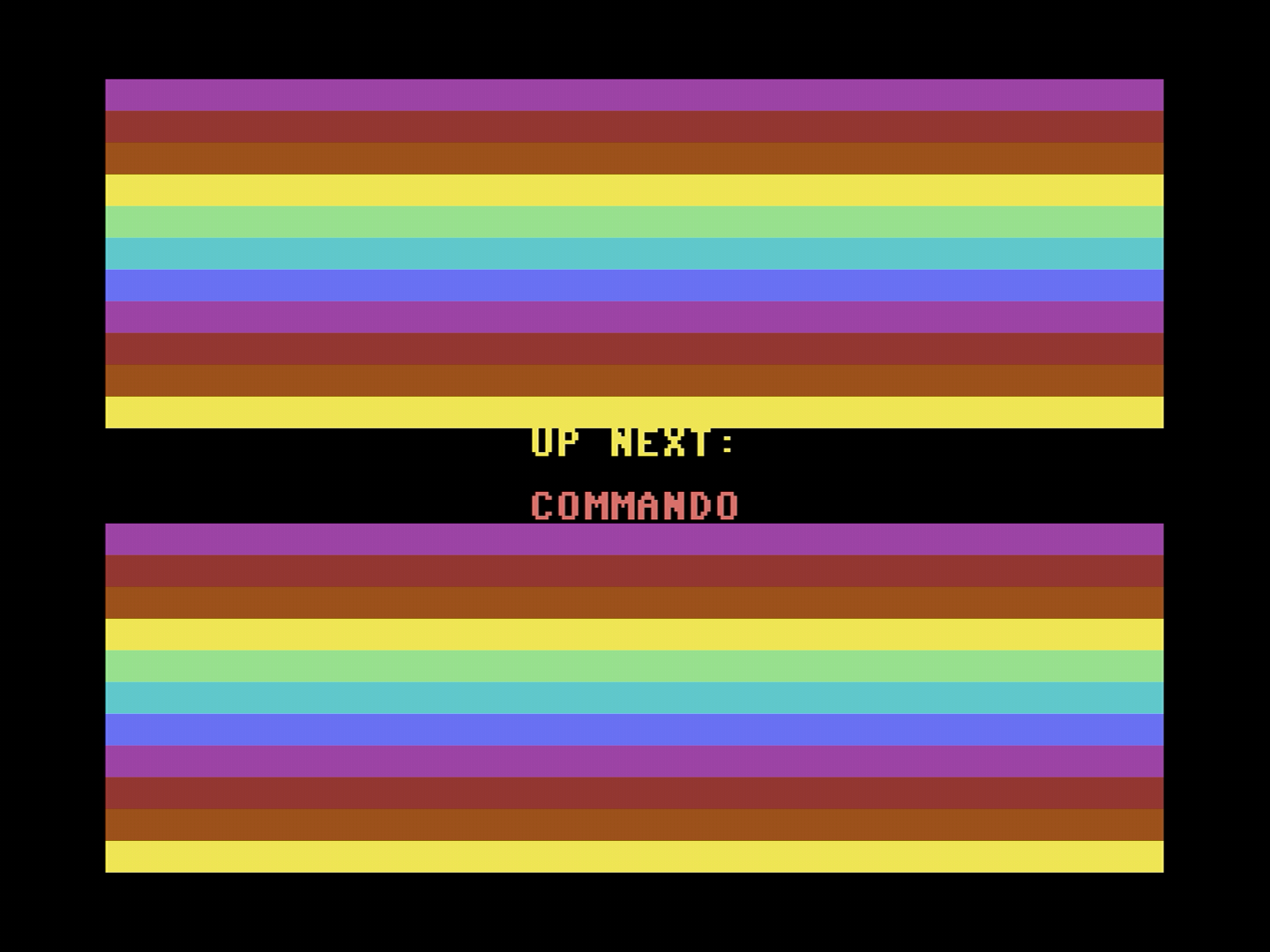
Its own section controls how it looks:
[interstitial]
duration_s = 4.0
text_color = "rainbow"
background = "random"
background picks the animation behind the text. The choices are starfield, petscii_bars, raster_bars, checker, nature, city, none, and random to pick a different one each time. text_color takes any C64 color name, or rainbow for a per-row cycle, or random.
Looping and Duration#
The [playlist] section governs the running order as a whole:
[playlist]
loop = true
interleave_videos = false
videos_dir = "~/Videos/interstitials"
loop decides what happens after the last scene finishes. Left at true, the playlist starts over. Set it to false and c64cast exits cleanly after one pass, which is what you want for "play this and stop". The command line can override it either way with --loop or --no-loop.
interleave_videos is a small luxury. Turn it on, point videos_dir at a folder of clips, and c64cast drops a video in between every pair of scenes, taking a different one each time. A playlist of five scenes becomes a channel that keeps surprising you without any further work.
Building One Interactively#
You do not have to write any of this by hand. c64cast ships an interactive builder:
c64cast --initIt asks what you want to build, offers the real choices for each setting along with their defaults, lets you add, remove and reorder scenes, and writes a properly-formatted, commented configuration file at the end. It then offers to run it.
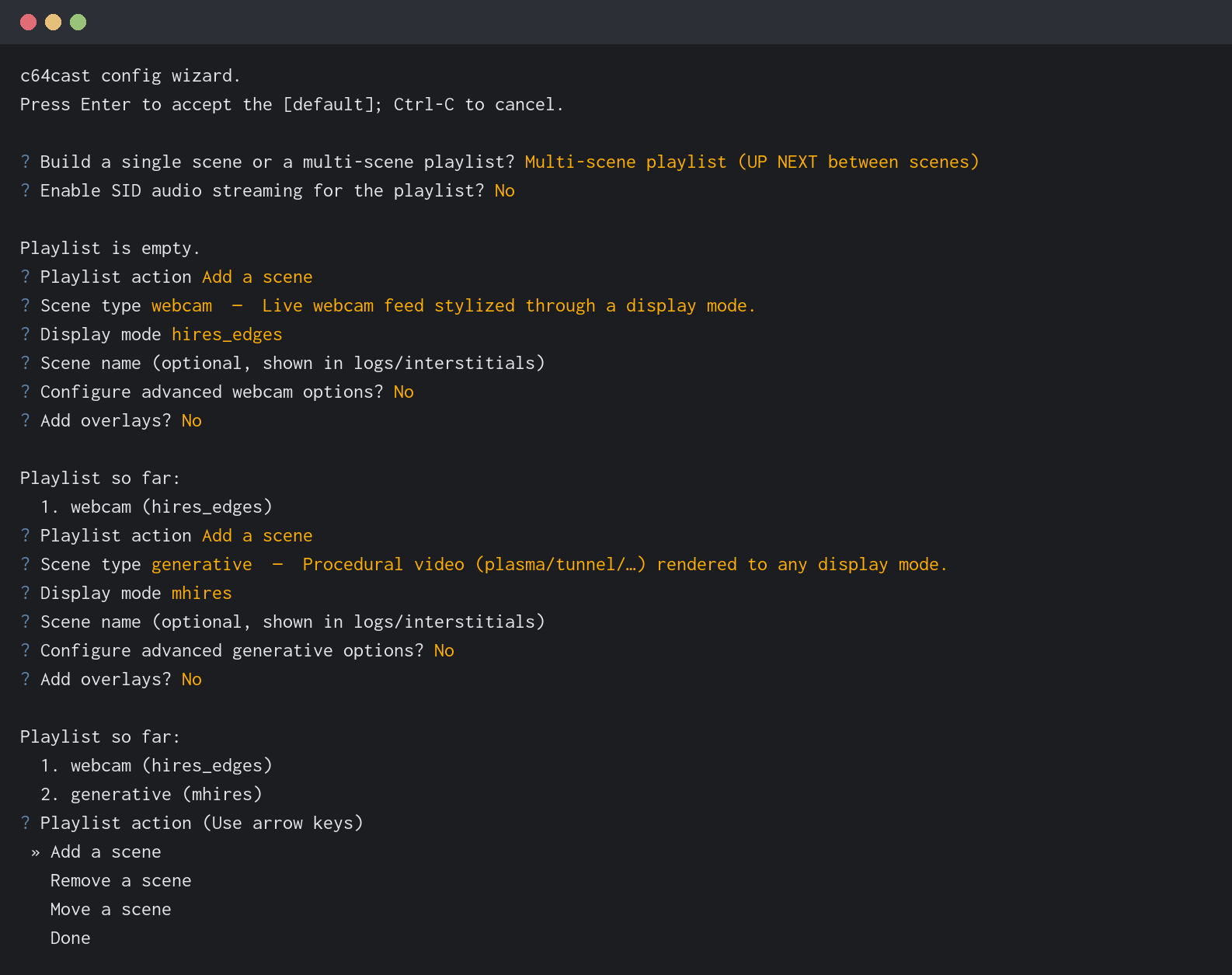
The builder is a good way to discover what exists. Every question it asks is generated from the same definitions that produce --list-scenes and --describe, so it can never offer you a setting that is not real.
Editing With Help#
If your text editor understands TOML schemas, c64cast can drive its autocompletion. It needs one line at the very top of your configuration file, pointing at the schema — and the easiest way to get it right is to let c64cast --init write the file for you, because it fills that line in automatically.
To add it to a file you wrote yourself, ask where the schema is:
c64cast --print-schema-pathand make that answer your first line, with #:schema in front of it:
#:schema /home/you/.local/share/uv/tools/c64cast/lib/python3/site-packages/c64cast/data/c64cast.schema.jsonLong and unlovely, and worth it: that is the schema inside the copy of c64cast you are running. Upgrading brings a new one with it, at the same place, so the line goes on describing what your install actually understands without you ever revisiting it. A web address with a version number in it would need editing every time you upgraded — and would quietly go on checking your file against the old release if you forgot. If you inherited a configuration with one of those on line 1, c64cast --doctor will say so, and print the line to use instead.
Editors with a TOML extension will then suggest valid settings as you type, show the documentation for each, and underline anything that is not real. The schema is generated from the same definitions as everything else, so it is never out of date.
You now know how to describe what you want. The next chapter is about what there is to want.