Quick Start
This section gets a picture onto your Commodore 64 in about five minutes. It assumes nothing except that you have a Commodore 64 Ultimate (or another machine on the Ultimate platform — Chapter 1 sorts out the names), that it is on your network, and that you have a computer nearby to run c64cast on. Everything else in this guide can wait.
Step 1: Turn on the services c64cast needs. c64cast talks to your Commodore over the network, and the firmware ships with the necessary services switched off. Open the C64U menu by pressing the Multi Function Switch upward, then press F2 for Advanced Settings.
Under Network Settings, set:
- Ultimate DMA Service → Enabled
- Web Remote Control Service → Enabled
Under Memory Configuration, set:
- Command Interface → Enabled
Press RUN/STOP to back out of the menus, and confirm saving when you are asked. You only ever have to do this once.
Step 2: Install c64cast. On your computer, in a terminal:
uv tool install 'c64cast[all]'That puts a c64cast command on your PATH, with everything c64cast can use installed alongside it. It assumes you have uv; if you do not, see Installing c64cast in Chapter 1, which links to its installation instructions and gives you an alternative if you would rather not.
Step 3: Find your Commodore. c64cast needs to know where to send pictures. Network Settings, the same menu you were just in, shows the machine's Active IP address.
While you are there, set Use DHCP to Disabled and give the machine a static address, so that it does not move around and you only have to tell c64cast once. With DHCP disabled the firmware's own default is 192.168.2.64, which is the address these examples use.
Step 4: Put something on the screen. This is the smallest interesting thing c64cast does. It needs no video files, no microphone and no webcam:
c64cast -u u64://192.168.2.64 --config example:helloSubstitute your own address. Within a second or two the Commodore's screen should clear to blue and a large scrolling message should slide across the middle of it.
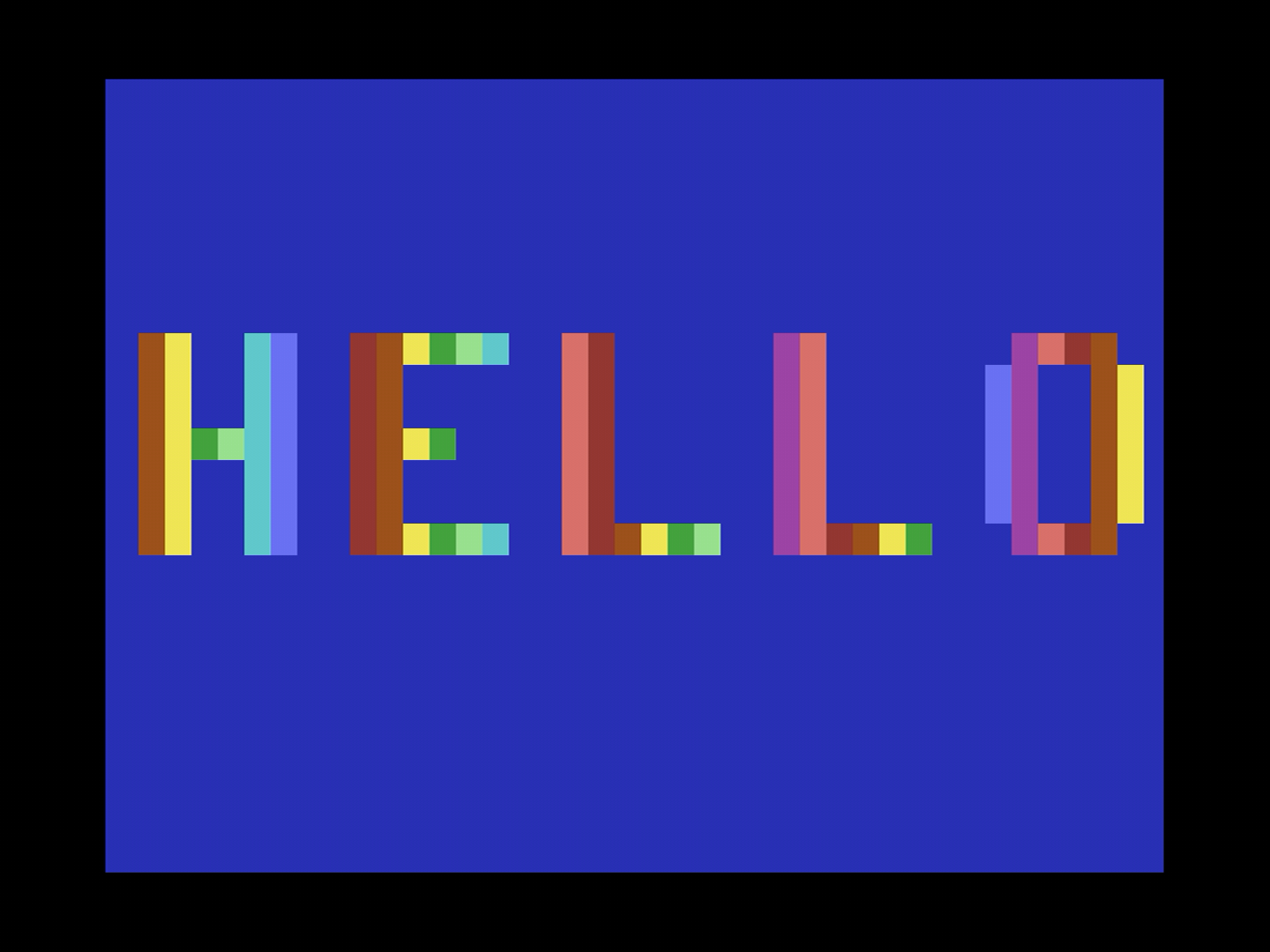
Step 5: Stop it. Press CTRL C in the terminal. c64cast puts the Commodore back the way it found it and exits. Give it a moment — the tidy-up is what a second press starts to skip, and a third press kills the process without it.
Playing Something Real#
The scroller proves the connection works. Now point c64cast at an actual video file. Any format your machine can decode will do:
c64cast clip.mp4There is no configuration file involved. c64cast looks at what you handed it, decides that a .mp4 is a video, quantizes each frame down to what the VIC-II chip can actually display, and plays the soundtrack through the SID.
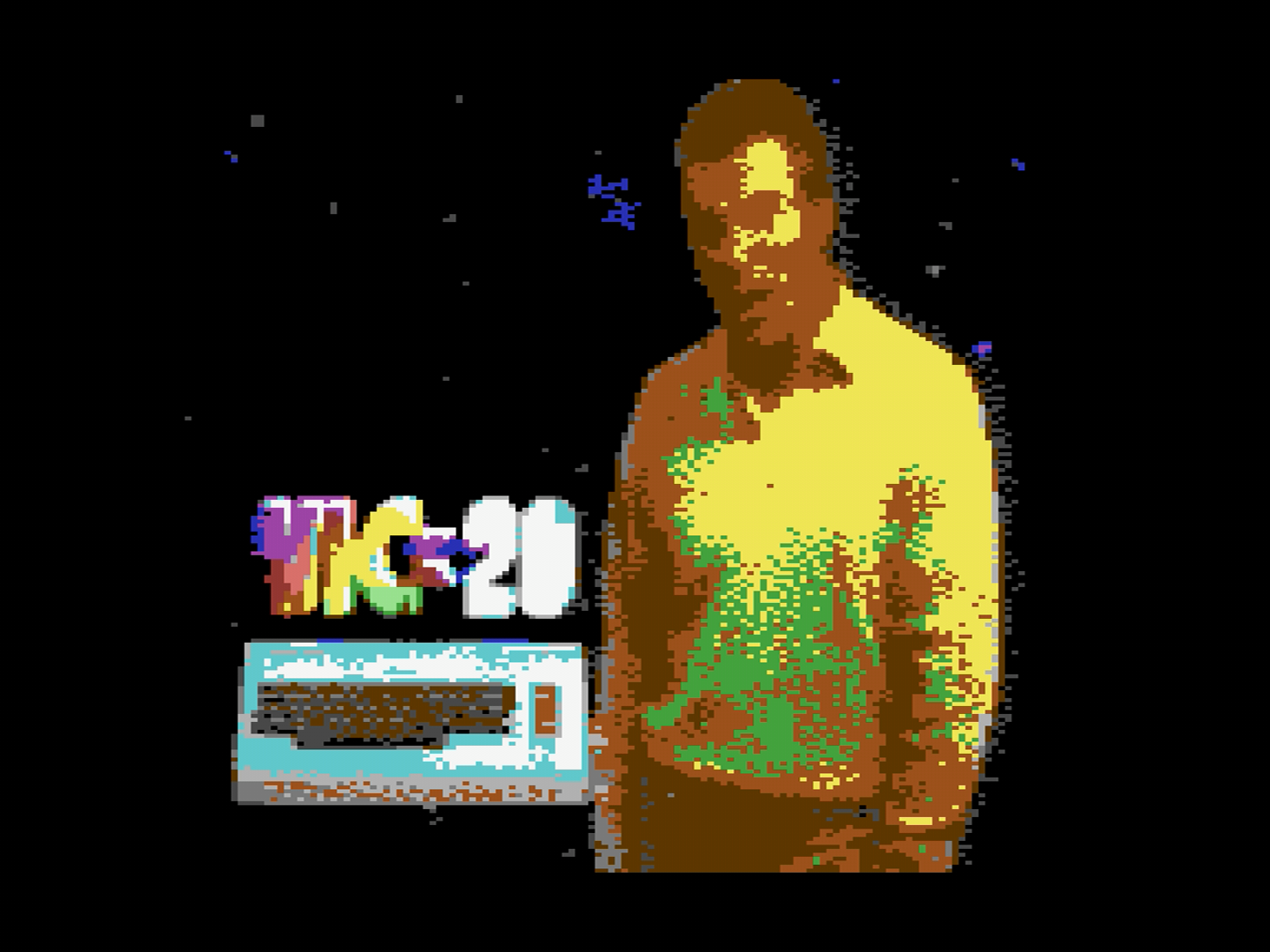
The picture is 160 pixels across with four colors in each 8×8 cell, and it is being computed and shipped over your network thirty times a second. It's not a high-resolution display, but that's the point.
You now have a working setup. The next few pages suggest things worth trying before you read any further.